

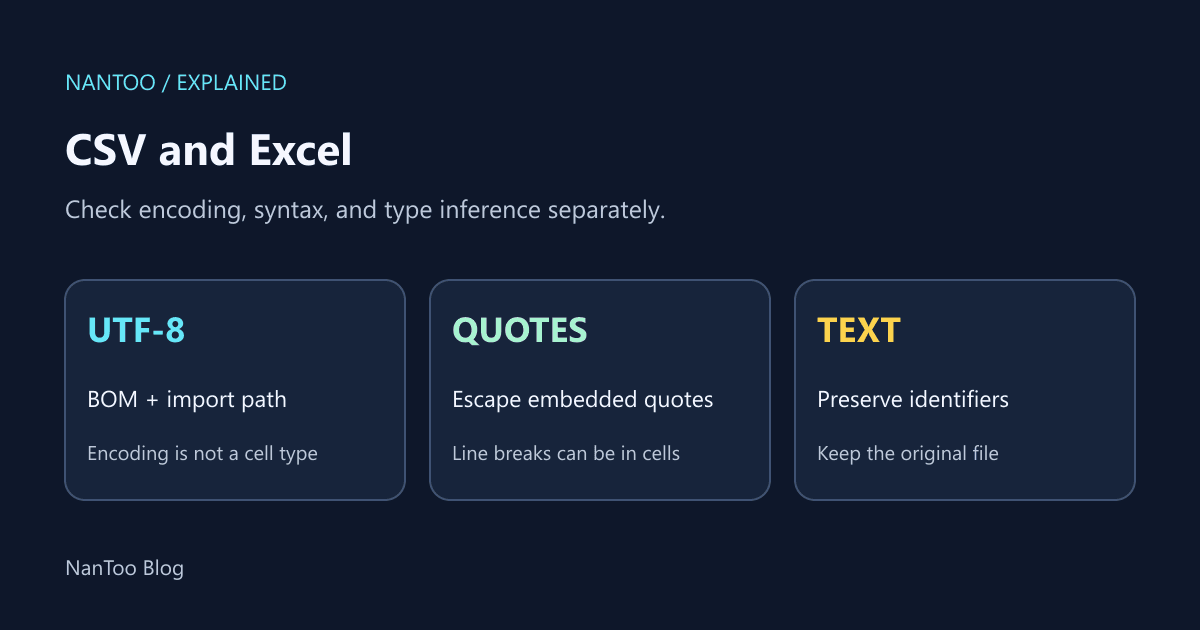
CSV and Excel: UTF-8, Quoting, Line Breaks, and Lost Leading Zeros
A CSV file may open with garbled names, split a cell across several records, or lose the leading zero in an identifier. These are different problems: character encoding, CSV syntax, and spreadsheet type inference.
This guide separates those layers using RFC 4180 and Microsoft’s import guidance. The goal is to preserve the intended values through an agreed export and import process, rather than rely on a file extension to describe every detail.
Japanese original published: 2026-04-22
What RFC 4180 describes—and what it does not
RFC 4180 is an Informational document describing a common CSV format and the text/csv media type. It is not an Internet Standard or a single mandatory specification followed by every CSV implementation.
In its described format, commas separate fields, CRLF separates records, and the last record need not end with a line break. A quoted field can contain commas and line breaks. A quote inside a quoted field is represented by two quotes. This is a concise summary of the structure:
file = [header CRLF] record *(CRLF record) [CRLF]
header = name *(COMMA name)
name = field
record = field *(COMMA field)
field = escaped / non-escaped
The MIME charset parameter is optional, and character sets other than US-ASCII can be specified. Do not infer a file’s encoding from its .csv extension alone. A local file may not arrive with a MIME declaration, so the transfer process must supply the missing agreement.
Problem 1: garbled text and the UTF-8 BOM
Microsoft says a UTF-8 CSV saved with a BOM can be opened normally in Excel. For a file without a BOM, use an import path such as Data → From Text/CSV and select UTF-8 where the interface provides that choice. Exact labels and available paths depend on the version and platform.
A direct open uses different assumptions from an explicit import. It is not sound to say that Excel always treats a BOM-less file as Shift_JIS or any other particular encoding. A Python 3 export example is:
import csv
with open("users.csv", "w", encoding="utf-8-sig", newline="") as f:
    writer = csv.writer(f, lineterminator="\r\n")
    writer.writerows([["name", "id"], ["Renée", "0123"]])
This writes UTF-8 with a BOM and CRLF record separators. Use encoding="utf-8" for a BOM-less variant. The BOM is an encoding clue: it does not tell Excel to preserve the id column as text.
Choose BOM handling for the intended consumer. On import, reconcile the sender’s declaration, BOM, explicit settings, and actual content instead of silently overwriting the original after an uncertain guess.
Problem 2: line breaks inside a field
Files in circulation can use CRLF, LF, or legacy CR line endings. Agree on the record separator rather than infer it solely from the operating system. Replacing every line break indiscriminately can also change a field’s contents.
id,name,comment
1,Alex,"See the next
line for details"
2,Sam,No comment
The example has four visible lines but three CSV records: one header and two data records. A parser that simply splits the file on a newline will split the quoted field. Likewise, splitting each line on commas is not a complete CSV parser. Use a parser that understands the agreed quoting and delimiter rules.
Problem 3: quotes and escaping
When a field contains a delimiter, quote, or line break, the quoted-field rules matter. For example, a value containing both a comma and a quoted word can be written as:
"Attended, asked about ""CSV"""The outer quotes delimit the field. The doubled quotes inside it represent literal quotes. A backslash followed by a quote is not RFC 4180’s escape convention, and single quotes do not replace the double-quote field delimiter.
Quoting every field is a possible export policy, but it does not declare a spreadsheet cell type and does not reliably prevent formula interpretation. Syntax escaping and spreadsheet safety are separate tasks. A full-width punctuation mark is also not the same character as the ASCII comma delimiter.
Problem 4: leading zeros, long identifiers, and dates
CSV does not carry spreadsheet cell types. The following are possible interpretations, not guaranteed results in every Excel environment:
Scroll horizontally if the table does not fit.
| Original value | Possible interpretation | What can change |
|---|---|---|
| 0123 | Number 123 | The identifier loses its leading zero |
| 3E2 | Number 300 | The original text representation changes |
| 3/4 | A date | Month/day order and assumed year depend on settings |
| 12345678901234567 | A number | Digits beyond Excel’s 15-digit numeric precision can be lost |
Import identifiers and date-like codes as Text. If Power Query has already applied a type-conversion step, inspect that step and restart from the original where necessary. Applying a display format afterward cannot recover digits that have already been lost.
Prefixing a tab changes the data. ="0123" is a spreadsheet formula, not a text-type declaration. Wrapping untrusted input in formulas is not a general solution. Doubling quotes is also not a complete defense against CSV formula injection.
When exporting to xlsx instead, explicitly create text cells for values that must remain text. A different extension alone does not establish the intended types.
Check regional settings and the import path
Excel can use a semicolon as the list separator depending on settings, including Windows regional settings. Distinguish decimal notation from the field separator, and confirm whether the receiving application expects commas or another delimiter.
Do not reduce Excel, Google Sheets, and LibreOffice Calc to a table claiming universal RFC compliance. Test the actual version, platform, and import path for encoding, delimiters, quotes, newlines, and type inference. Start with a copy and a small set of known values, then compare the imported data and a re-export.
When another format may help
- TSV: avoids comma delimiters, but tabs and newlines inside values still need agreed handling.
- JSON or JSON Lines: represents strings, numbers, booleans, nulls, arrays, and objects. Large integers and dates still need a shared convention.
- xlsx: supports explicit cell types, formulas, and multiple sheets. Use the appropriate cell type.
- Parquet: a column-oriented binary option for analytical data workflows.
- SQLite: a database file that can be queried with SQL.
Choose according to receiver support, type preservation, data volume, and editing needs. Changing formats does not automatically make an exchange safe or lossless.
A practical export and import checklist
- Agree on encoding and BOM handling. UTF-8 with a BOM is an option when direct opening in Excel matters.
- Use CRLF record separators when exchanging the format described by RFC 4180.
- Quote and escape fields consistently; do not substitute backslash escapes for doubled quotes.
- Test embedded commas, quotes, and newlines.
- Import identifiers, long numbers that are really codes, and date-like strings as text where appropriate.
- Keep formula handling separate from ordinary syntax escaping.
- Retain the original, inspect the imported values, and compare any re-export before replacing data.
The binary editor can help inspect bytes such as EF BB BF or CRLF. Byte inspection does not replace a CSV parser or spreadsheet type settings.
Key points
- Separate encoding, CSV syntax, and spreadsheet type inference.
- RFC 4180 describes a common format; it does not determine every consumer’s behavior.
- A BOM can help Excel recognize UTF-8, but it does not protect leading zeros or long identifiers.
- Use explicit text imports and preserve the original file.
- Quoting, formula handling, and choice of interchange format require separate decisions.
References and sources
Editorial note
This article was prepared with AI assistance and reviewed by an editor before publication. It may still contain factual errors, interpretation mistakes, or outdated information. Check the cited primary sources or official documentation before making an important decision.