

JPEG Quality 80 vs. 90: DCT, Quantization, and File Size Explained
JPEG quality 80 does not mean that an image retains 80% of its original quality. In many encoders, the quality setting controls quantization tables. The visible damage and resulting file size depend on the image as well as the encoder.
This companion to our WebP, AVIF, and JPEG comparison explains why JPEG works well for many photos but struggles with fine text and sharp graphics. We focus on the common lossy JPEG process using DCT, quantization, and Huffman coding. T.81 also describes lossless processes and arithmetic coding; those are not all the same pipeline.
Japanese original published: 2026-06-06
The DCT works on 8 × 8 blocks
In the DCT-based process discussed here, each image component is divided into blocks of 8 × 8 samples. If chroma has been subsampled, a component block does not necessarily cover the same area as 8 × 8 pixels in the original image.
The discrete cosine transform separates each block into an average component and patterns of spatial variation. Low frequencies describe gradual changes; high frequencies describe finer detail, texture, noise, and edges. Losing some high-frequency information may be unobtrusive in a photo, but it can be conspicuous around letters or thin lines.
Large smooth areas, defocused backgrounds, and gradual tonal changes often compress well. Screenshots, UI icons, diagrams, and fine text have abrupt transitions that can expose JPEG artifacts.
Quantization is where much of the information is lost
The DCT is mathematically reversible, although finite-precision implementations can introduce rounding error. The major deliberate loss in this process comes from quantization: dividing a coefficient by a step size and rounding it.
quantized coefficient = round(DCT coefficient / quantization step)A larger step maps more distinct values to the same result. This can reduce file size while introducing block boundaries, ringing around edges, and visible changes in smooth gradients.
Common tables use finer steps for lower frequencies and coarser steps for higher frequencies. That is a practical perceptual trade-off, not a rule that high-frequency information is always unimportant.
A quantization table is a map of what to discard
The 8 × 8 coefficients and their quantization steps have corresponding positions. Near the top left are low-frequency components; the bottom-right coefficient represents high variation along both axes. The DC coefficient at the top left is related to the block average.
Coarsening the DC coefficient too much can noticeably alter brightness. Coarsening high-frequency coefficients removes detail, which can be acceptable for some photographs but troublesome for text, borders, and illustrations.
The sample luminance table has relatively small values near the top left and larger values toward the bottom right. It is a useful reference table, not a requirement that every JPEG encoder use identical values. Ringing or “mosquito noise” near sharp edges shows why a photo-oriented trade-off may be inappropriate for a diagram.
How quality 80, 90, and 95 change the steps
For the familiar IJG quality scale at Q ≥ 50, the scaling factor is:
scale = 200 - 2 * Q
step = floor((base * scale + 50) / 100)
step = max(1, min(255, step))
The last line applies the baseline-compatible limits. Applying this calculation to the 64 entries of the T.81 Annex K sample luminance table produces:
Scroll horizontally if the table does not fit.
| Quality | Scale | DC step | Bottom-right step | Mean step |
|---|---|---|---|---|
| 80 | 40 | 6 | 40 | 23.08 |
| 90 | 20 | 3 | 20 | 11.50 |
| 95 | 10 | 2 | 10 | 5.77 |
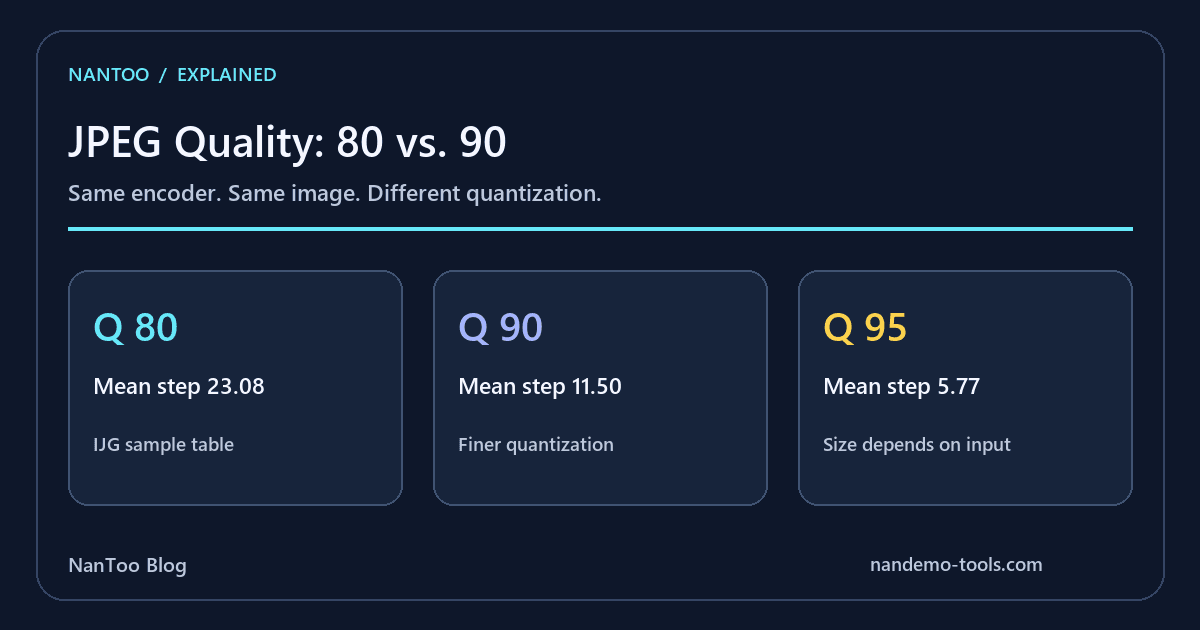
The mean is the arithmetic mean of the 64 steps, rounded to two decimal places. In this example, going from 80 to 90 roughly halves the steps; going from 90 to 95 roughly halves them again. Finer coefficients are less likely to become zero, so more information may remain to encode.
At quality 100, this scale makes the table entries 1. It does not guarantee lossless output: color conversion and finite-precision operations can still change samples. Nor does halving the mean step imply any fixed multiplication of the file size.
The same quality number can mean different things
Quality 85 is not a universal JPEG setting. IJG libjpeg, mozjpeg, image editors, browser Canvas encoders, and optimization services can differ in quantization tables, chroma subsampling, trellis quantization, and metadata handling.
Compare settings within the same encoder using the same original image. A quality-80 result from one tool cannot be ranked against a quality-90 result from another merely by comparing those numbers.
Treat the control as an encoder-specific adjustment, not a promised percentage of visual quality or a target file size. Inspect both the resulting image and its byte size.
Why more zero coefficients can mean a smaller file
After quantization, many higher-frequency coefficients may become zero. The common JPEG process orders coefficients in a zigzag sequence, represents runs of zeros compactly, and uses Huffman coding to encode the symbols.
The number and distribution of coefficients therefore matter, not just the quality number. Smooth skies and walls can become much smaller when quantization is strengthened. Leaves, hair, gravel, and fabric may retain many coefficients at the same setting.
A change from 90 to 95 can preserve details that were previously rounded away. The visible improvement may be subtle while the encoded data grows considerably. The size of that change depends on the input and encoding choices.
Compare the same image with the same encoder
Keep the original image, encoder, chroma setting, metadata policy, and progressive or sequential mode fixed. Otherwise, a quality comparison can really be a comparison of unrelated defaults.
Export several candidates, such as 75, 80, 85, 90, and 95. Compare file sizes, inspect at 100% zoom, and also look at the intended display size. A difference visible at pixel level may be difficult to notice in a smaller mobile layout.
Inspect smooth gradients, dark areas, edges, text, and fine texture separately. Check for block boundaries, ringing, color bleeding, and lost detail. Looking only at the center of a photo can miss the area most affected by compression.
Chroma subsampling is a separate trade-off
JPEG photos commonly use YCbCr components rather than encoding RGB directly. Y represents luma and Cb/Cr represent color differences. Reducing color resolution is another way to save data.
- 4:4:4: no chroma subsampling.
- 4:2:2: half the horizontal chroma sampling density.
- 4:2:0: reduced chroma sampling density horizontally and vertically.
4:2:0 is often useful for photos, but fine colored text and sharp color boundaries can reveal bleeding. Raising the quality setting does not necessarily restore color detail removed by subsampling.
If high-quality output still has blurred colored lettering, check the chroma setting as well as the quantization setting. 4:4:4 can help preserve those boundaries, usually at a higher data cost.
Practical starting points, not quality guarantees
For an IJG-style scale, these can be starting points for a comparison:
- Photos: try around 80–85, then inspect the result.
- Product photos: try 85–90 when fine texture matters.
- Screenshots and diagrams: consider PNG or lossless WebP. With AVIF, inspect the encoding and chroma settings too.
- Banners with text: consider 4:4:4, a higher quality setting, or another format.
- Editable assets: retain an original rather than repeatedly exporting the working copy as lossy JPEG.
These ranges are not transferable quality guarantees across encoders. JPEG remains useful because of its broad decoding support and mature tooling, but no single setting is right for every image.
Re-encoding is different from copying a JPEG
Decoding a JPEG to pixels and then encoding another lossy JPEG can add quantization and other losses. Repeating that process may accumulate damage around edges, text, and block boundaries.
A byte-for-byte file copy, a metadata-only edit, or a supported lossless operation in the JPEG coefficient domain is different from pixel-domain re-encoding. It is inaccurate to say that every operation called “save” necessarily re-quantizes the image.
Keep a suitable original or lossless working file for repeated editing, and create the delivery JPEG at the end. A CMS may re-encode uploads with its own settings, so inspect the actual delivered image as well as your local export.
References and sources
Editorial note
This article was prepared with AI assistance and reviewed by an editor before publication. It may still contain factual errors, interpretation mistakes, or outdated information. Check the cited primary sources or official documentation before making an important decision.